Coverage is a number you can plan against.
Each day's percentages add up across the team, in people. Set a target and Coverage Outlook shows where you fall short. Alert rules tell you when that number moves.
Availability, added up.
Coverage for a day is the sum of every active member's availability, in people. The figure below adds to four people present out of six. That is the default because staffing requirements are usually written that way, and because a headcount does not shift underneath you when somebody joins or leaves. The same figure reads as a percentage of the team, or as distance from your target, if that suits you better.
The sum is unweighted: seniority, role, and tenure do not change the arithmetic. How overlapping events resolve is in the documentation.
How coverage is calculated, in full →The forward view, against your target.
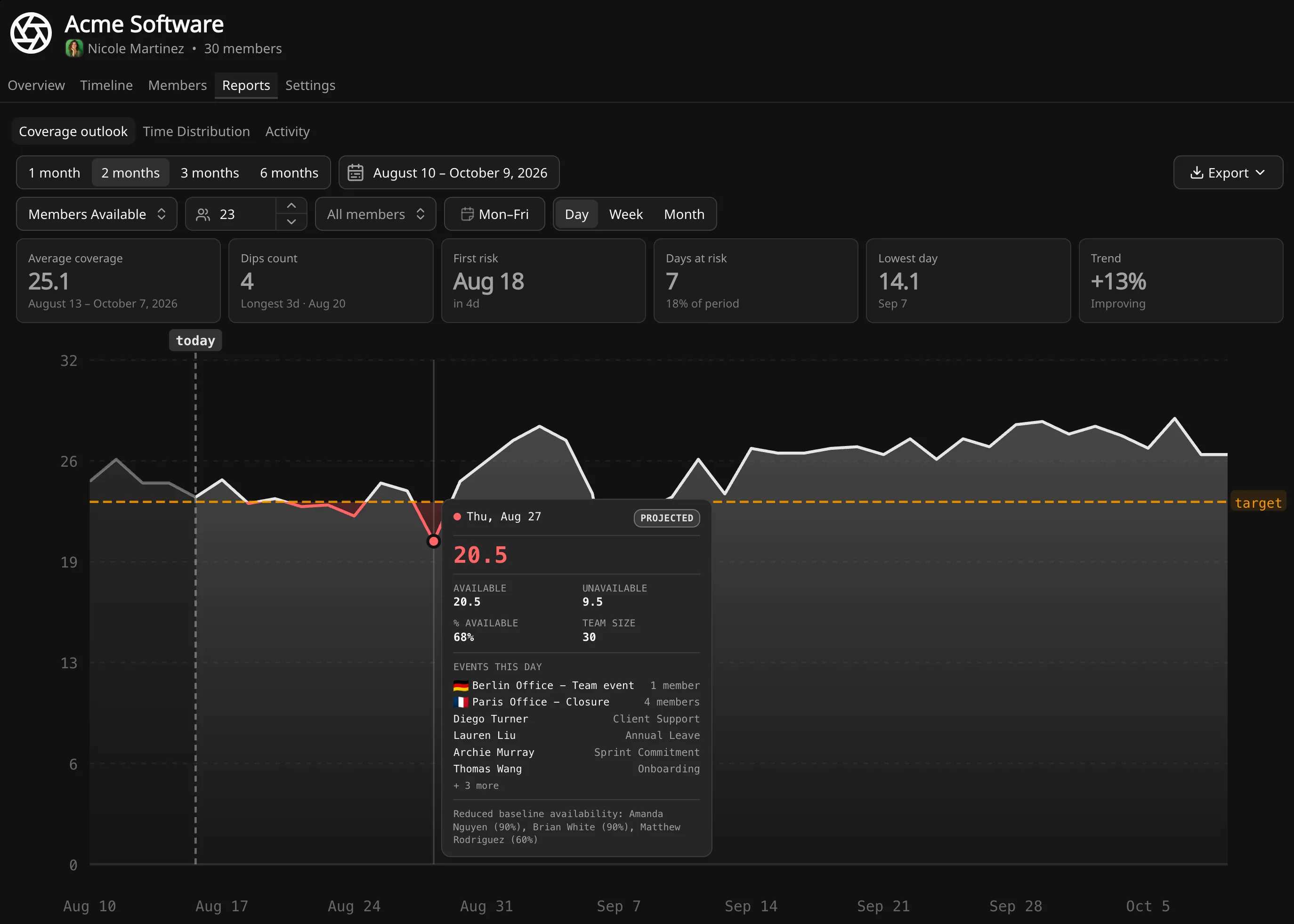
The team's coverage plots forward across the period you select, with target coverage drawn as a line. Days below it are visible while there is still time to move a training block, shift a rotation, or arrange cover. Above the chart the report names the first day at risk, the lowest day, and how much of the period sits below target, so you can assess a period without reading the shape.
- Custom date ranges looking forward, with configurable granularity
- Insights into the period with key metrics
- Select custom days of week to plot in the chart
- Multiple coverage metrics, including percentages and distance from target
- Per-day detail with events behind the number
- Export underlying data as CSV
Alerts watch the number for you.
The outlook only helps on the days someone opens it. An alert rule checks coverage on a schedule and emails you when a gap appears, or when an existing one gets worse. Alerts are available on Standard tier and above.
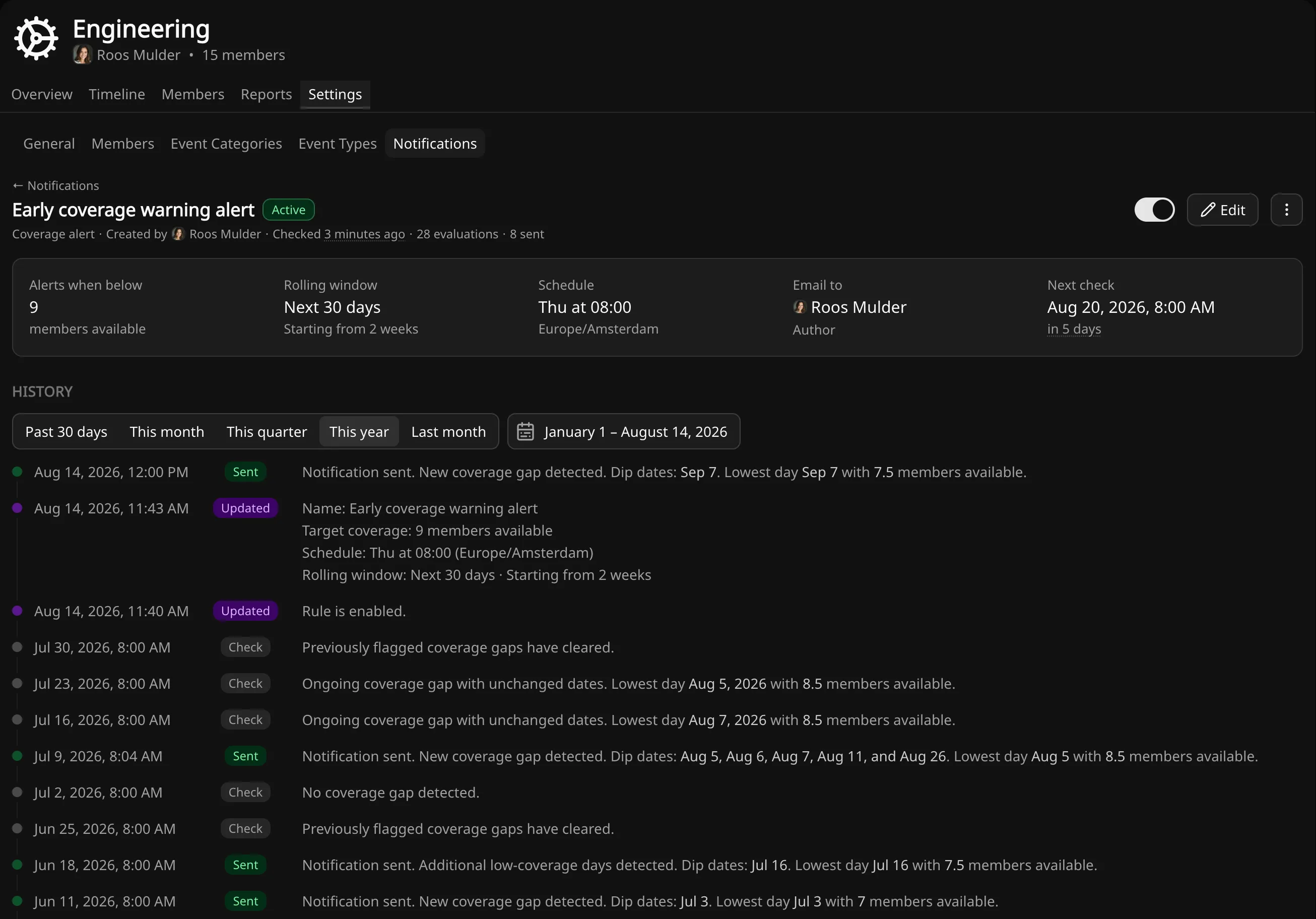
A rule watches one team and fires when coverage falls below a value you set, in members available, the same unit the chart uses. The team's target is a reasonable starting point. A rule can carry a higher threshold if you want earlier warning.
- A rolling horizon with an optional offset, or a fixed span for a release or season
- Each rule emails one recipient, the person who wrote it or the team owner
- Multiple rules per team, with different thresholds and windows
It arrives when something has changed.
At each scheduled check the rule looks at the window and compares it to the last report. A day newly below the threshold, or a shortfall that has deepened, produces an email. An unchanged shortfall does not. A rule that has already told you about a bad Friday stays quiet until that Friday gets worse or a new one appears.
The message names the lowest day and its value, how far below your threshold, the affected dates, and a link into the team's outlook with the period already applied. Enough to decide whether to act now or at the next standup.
Coverage alert · updated
| Rule | Sprint window threshold breach |
|---|---|
| Threshold | 12.5 available |
| Window | Aug 1 (Sat) to Aug 21 (Fri) (21 days) |
1 more day just crossed the threshold: Aug 6 (Thu).
All affected dates
Aug 6 to 7 (Thu to Fri)
View Acme Software OutlookWhy a message did or did not arrive.
Each rule shows its configuration beside a single timeline: every check and its outcome, every email and whether it was delivered, and every change to the rule. If nothing arrived, the record says whether the check found nothing to send, or the message failed to deliver.
- An outcome for every run, including the checks that sent nothing
- Delivery results, including failures and the underlying error
- Rule changes recorded in the workspace audit log
- The next scheduled check shown on the rule
Coverage looks forward. Reports work over the same events in retrospect: where the time went, how it split, and who changed what.
Find out how many people you'll really have on the 14th.
Free for up to 10 people. No credit card.