

Coverage alerts
A coverage alert is a team rule that emails you when projected coverage falls below a number of members available, inside a window you set, on a schedule you choose. Coverage alerts are available on Standard and higher.
The number it compares is the same coverage figure How coverage is calculated produces, in members available. This page is the rule, the email, and the history. It does not restate how that figure is produced.
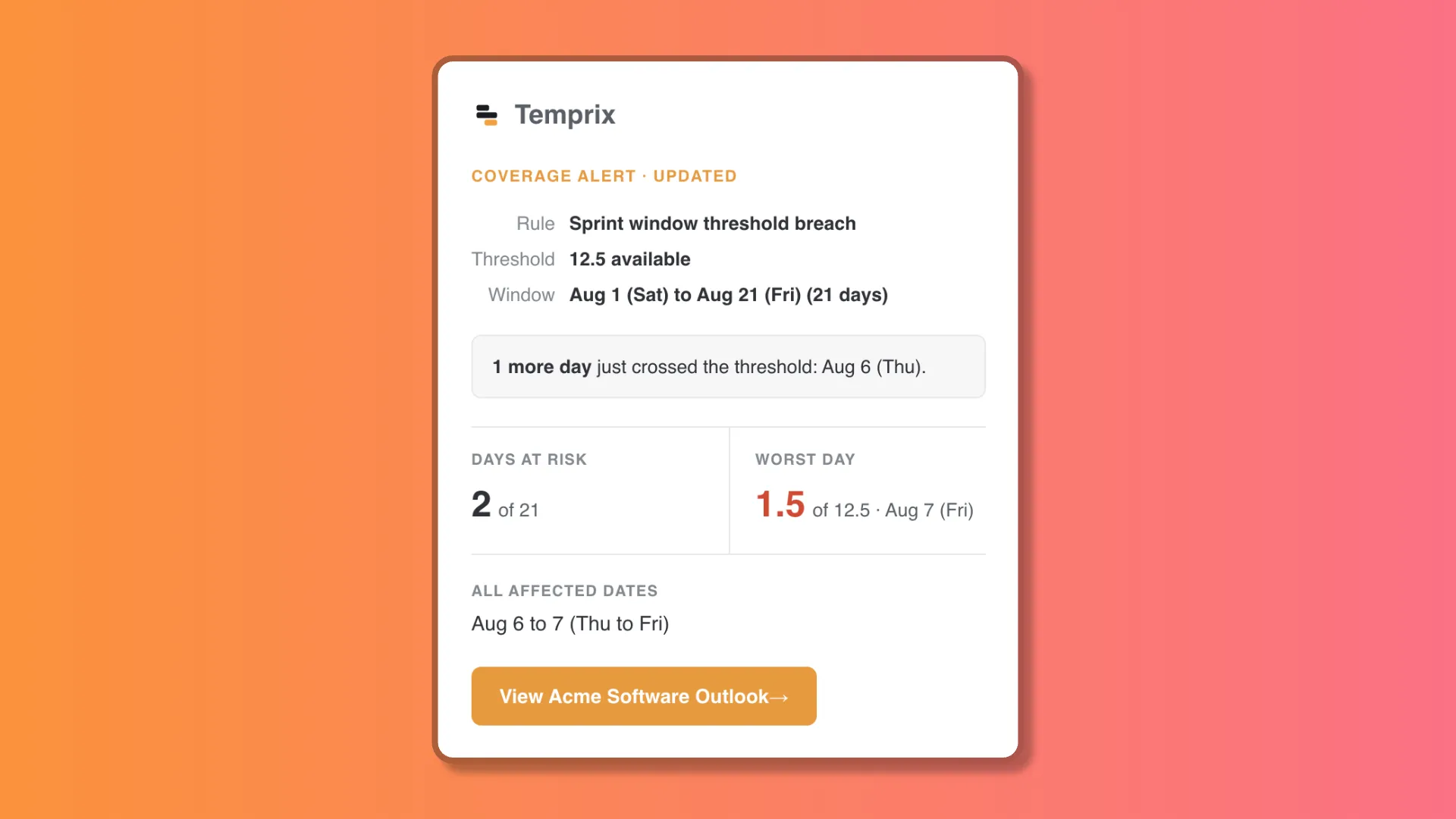
A follow-up email when another day in the window crosses the threshold.
Create a rule
Section titled “Create a rule”On the team, open Settings, then Notifications. The same list lives on the team’s Notifications tab under workspace settings.
Choose Add Notification → Coverage alert. Workspace owners and admins, the team’s owner, and (on Business) team admins can create, edit, and delete rules. Other members cannot.
A team can have more than one rule. A common pattern is one rule at the team’s target and a second with a higher Target coverage, so you hear earlier as coverage approaches the line.
What a rule contains
Section titled “What a rule contains”The form is Name, Coverage, Outlook Window, Schedule, and Delivery. On the saved rule those fields become a summary: Alerts when below, Rolling window or Fixed window, Schedule, Email to, and Next check.
Threshold
Section titled “Threshold”Target coverage is a headcount on the members-available scale, not a percentage and not a Timeline display mode. The summary reads Alerts when below N members available.
A day is a gap when that day’s coverage is strictly below the number. Hitting the threshold exactly is not a gap.
New rules copy the team’s target if one is set. Otherwise they use three-quarters of the team, rounded up.
Window
Section titled “Window”The window is the stretch of upcoming days the rule inspects.
| Window type | What you set | Bound |
|---|---|---|
| Rolling | Start offset (days) and Duration (days) | Offset 0 to 180, duration 1 to 180, separately |
| Fixed dates | Inclusive Date range | 1 to 180 days; the end date cannot be in the past |
A rolling window can start 180 days out and still last 180 days. Those two limits do not add.
Offset 0 is Starting from today. Duration 14 is Next 14 days, the
create default. A start offset that is a multiple of seven is shown in weeks
(Starting from 2 weeks).
A fixed window whose end date has passed shows Expired. Checks after that record that the monitoring window has ended.
Empty weekends are skipped, so an empty Saturday does not look like a breach. A day that has coverage, including a Saturday on-call, is still checked.
Schedule
Section titled “Schedule”Days of week, Time of day, and Time zone (an IANA zone stored on
the rule). Defaults are Monday–Friday at 09:00 in your zone.
Deselect every weekday to run every day. The zone is the rule’s, not the workspace’s. Today for a rolling window, and the wall-clock time of a check, use that zone.
Enabled rules that are due are picked up about every 30 minutes. Creating or enabling a rule arms it for the next opportunity; later checks follow the schedule. Next check shows the next slot, On next tick when it is already due, or Rule is disabled.
Email is the only channel. Send email to is Author (the member who created the rule) or Team owner (whoever owns the team at send time). The summary label is Email to.
If you choose Author, the author must currently own the team. A workspace admin who creates a rule and leaves Author selected will not receive mail. History then records Author must be a team administrator to receive notifications. Choose Team owner when the recipient should follow ownership.
When you get an email
Section titled “When you get an email”Each check compares the current gap dates to the dates from the last check.
| What changed | Email? | History |
|---|---|---|
| First dates below the threshold | Yes | Sent · New coverage gap detected. |
| Extra dates below the threshold, on top of known ones | Yes | Sent · Additional low-coverage days detected. |
| Same dates, coverage lower or higher | No | Check · worsened or improved |
| Same dates, same severity | No | Check · Ongoing coverage gap with unchanged dates. |
| Every previously flagged date has recovered | No | Check · Previously flagged coverage gaps have cleared. |
| No gap this window | No | Check · No coverage gap detected. |
The first email uses the subject Coverage risk: followed by the team name and the rule name. A follow-up that adds dates uses Coverage risk updated: with the same names. The message lists the new dates, the full set still below the threshold, and the lowest day. View … Outlook in the email opens Coverage Outlook.
History
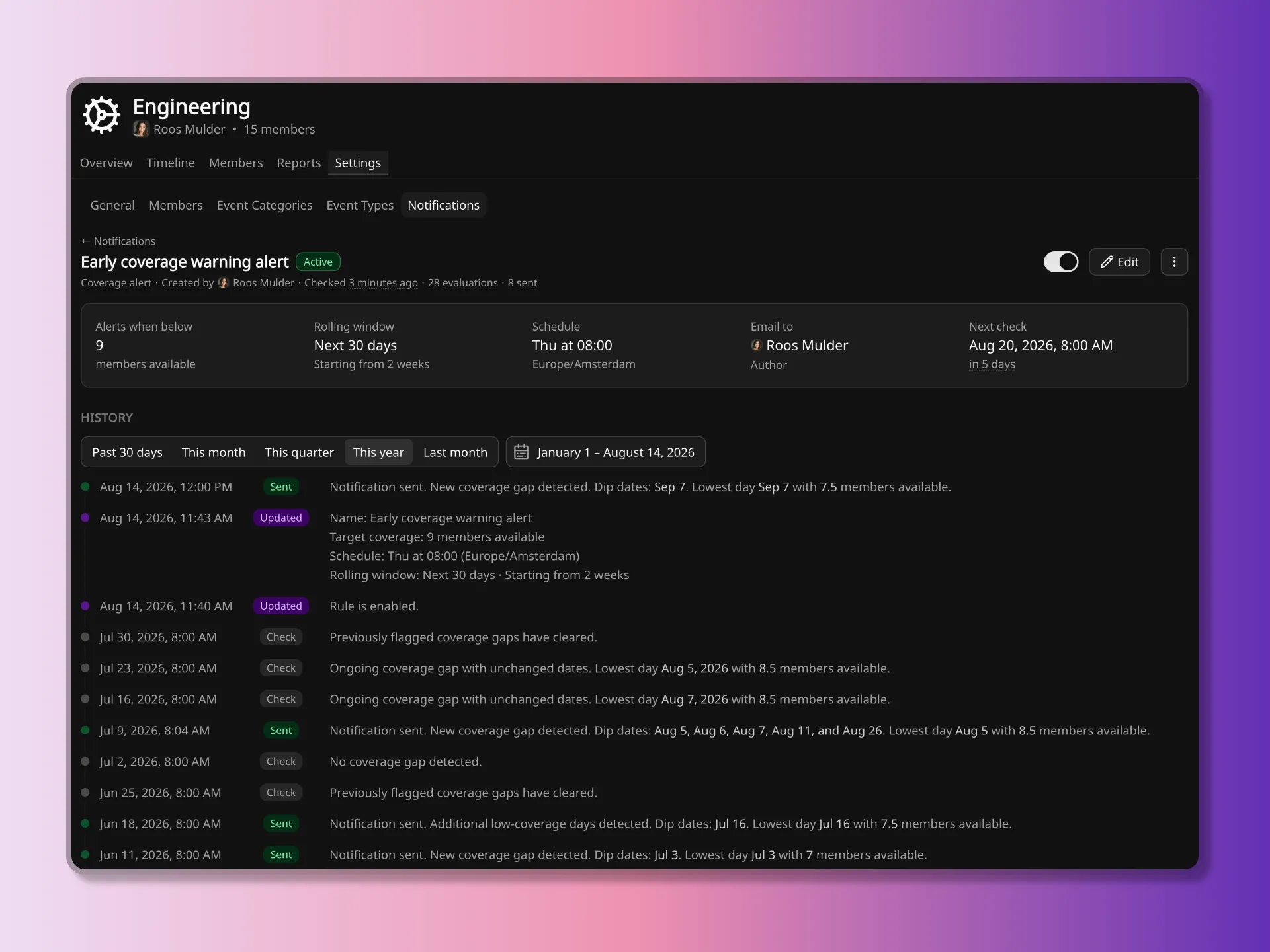
Section titled “History”The rule view merges three kinds of row into one History timeline:
- Sent, Pending, Partial, Failed: a dispatch. Delivery problems are rewritten as readable errors (recipient missing, no email address, account not active, and similar), not raw codes.
- Check: a run that did not email, including Alert not checked — Standard plan required. and a window that has ended.
- Created, Updated, Deleted: you changed the rule. Lines include Rule is enabled. / Rule is disabled., the name, target, schedule, window, and Author / Team Owner.
The subtitle on the rule counts evaluations and messages sent, and shows when it was last checked.
Why a message did not arrive
Section titled “Why a message did not arrive”Work down this list. Most cases are a Check, not a delivery failure.
- Nothing new. Same gap dates as last time. History: Ongoing coverage gap with unchanged dates.
- The gap got worse or better on dates you already have. History: Coverage worsened on an already flagged day. or Previously flagged dips improved. Still no email.
- The gap cleared. History: Previously flagged coverage gaps have cleared.
- Free plan. You can still create a rule. The card shows Paused and Inactive on Free plan. History: Alert not checked — Standard plan required.
- Author is not the team owner. See Email above.
- The rule is disabled. Next check reads Rule is disabled.
- The fixed window has ended. Card Expired. History records that the window is in the past.
- Delivery failed after a send. History Failed or Partial, with the reason (recipient could not be reached, has no email, and similar).
Plans and limits
Section titled “Plans and limits”A team can have 25 coverage alert rules. The cap is the same on every plan.
Where to go next
Section titled “Where to go next”- How coverage is calculated is the figure this rule compares to the threshold.
- Coverage Outlook is the chart the email links to.