

Event categories and types
Every event is an instance of an event type, and every type belongs to an event category. The category decides how a block of time is treated: member or group scope, time type for reports, default availability, and colour. The type is the label and icon used when that period is logged.
Workspace administrators keep a shared catalog for organisation-wide periods. Individual teams can extend that catalog with categories and types that apply only to that team.
How a type’s availability becomes a day’s figure is on How availability works. How those figures add up to a team number, including events that count on non-working time, is on How coverage is calculated.
What each level controls
Section titled “What each level controls”| Level | Carries | Effect |
|---|---|---|
| Category | Scope, time type, default availability, colour, Z-Index | Applies to every type in it |
| Type | Name, icon, description, optional default availability, optional default for non-working days | Applies to events of that type |
A type that sets its own default availability overrides the category for that type. A type that leaves it empty inherits the category. That is the inheritance rule.
If a category’s default availability is 0%, every type in it is 0% until a type sets its
own. Setting 50% on one type does not change its siblings.
Scope and time type are chosen when the category is created and cannot be changed later. Renaming, recolouring, and changing default availability stay available. The same idea at the other scope needs a second category.
Availability is a starting point
Section titled “Availability is a starting point”The availability on a category or type is a default. It pre-fills the field when an event of that type is created. The value on the individual event can differ.
A type set to 50% does not force 50%. It means new events of that type start as half days.
Nothing downstream re-derives the number. The value on the event is the value the coverage
calculation reads.
Changing a type later does not rewrite availability already saved on events. It does change how those events are labelled, coloured, and grouped.
Time type
Section titled “Time type”Every category has a time type. It classifies the period for Time Distribution and Member Time Breakdown. It does not set availability.
| Time type | Meaning |
|---|---|
| Primary | Regular duties the member is expected to perform, or was hired to do: handling tickets from a queue, taking customer calls, and similar. |
| Secondary | Auxiliary duties. The member is present, but not focused on primary work. Examples include training, onboarding, and project work. |
| Standby | The member is working, but in an exceptional mode that is tracked separately from primary work. Examples include on-call and pager duty. |
| Non-working | The member is not present and does not perform any work. |
Availability and time type are independent. Availability answers how much of the working day a member is contributing. Time type answers what kind of time it was, for reporting. Two categories can share the same default availability and remain distinct. Reclassifying a category changes the reports and leaves coverage untouched.
Member scope and group scope
Section titled “Member scope and group scope”Scope is set on the category and decides how events in it are created.
Member categories apply to one person: leave, training, on-call. Those periods are logged as member events.
Group categories apply to a location-matched period: a public holiday, an office closure. Those periods are logged as group events. One row covers everyone whose country matches. Group categories stay a workspace decision. Teams add member categories.
Workspace level and team level
Section titled “Workspace level and team level”Categories and types exist at one of two levels.
Workspace level is available in every team.
Team level belongs to one team and appears only there. That suits configuration that would be noise elsewhere: a shift pattern only one team runs, a duty rotation another team has no use for.
A team does not replace the workspace set. It adds to it. Members of that team see the workspace catalog plus the team’s own, in one picker. A team-level category does not hide or shadow a workspace one. There is no override and no precedence rule.
A team type can sit under a workspace category (same time type and default availability, a distinct label) or under a new team category when the time type or default availability should differ.
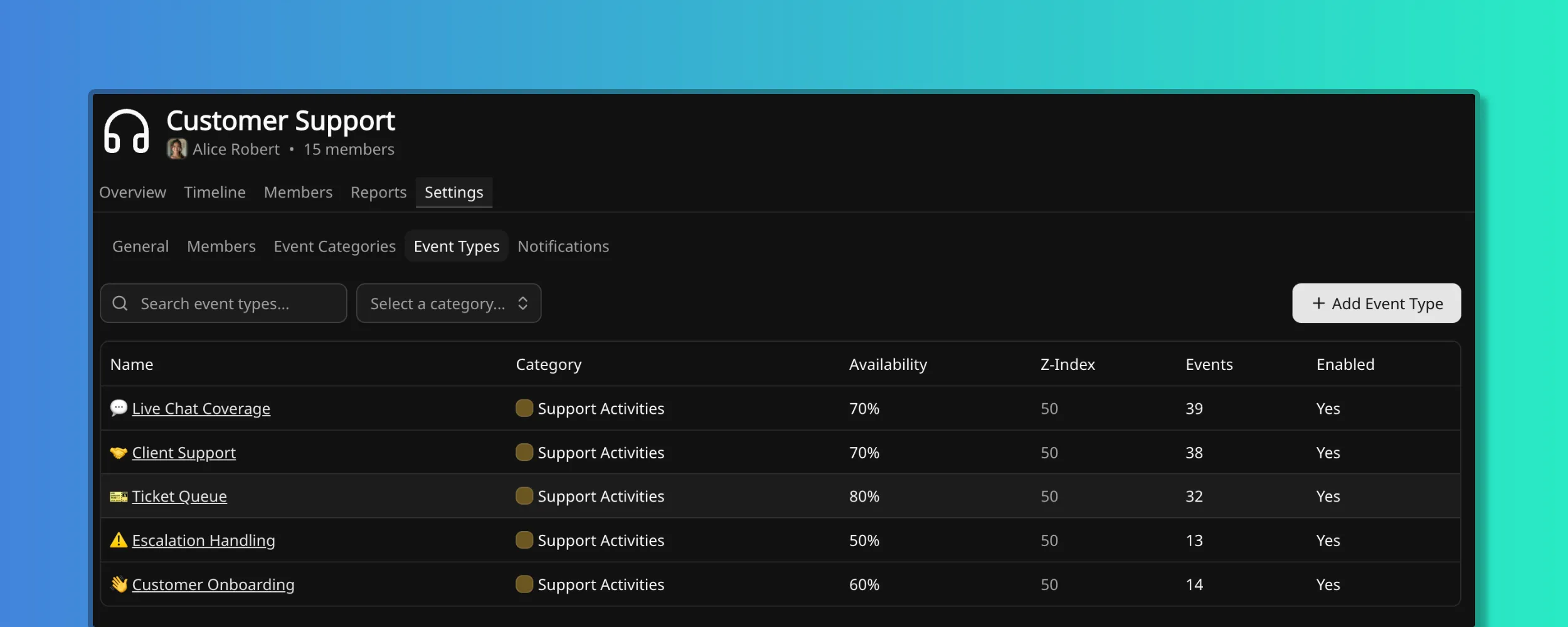
Events created from a team-level type stay attached to that type. Moving a member out of the team does not rewrite their history. A team-level type is not visible to other teams, including in their reports, so cross-team comparison works best on the workspace set.
When to create a category
Section titled “When to create a category”A new type inside an existing category is the right choice when the new period behaves like its neighbours and only needs to be named separately. A speaking-track variant of an existing conference type is a type, not a category. Finer types make reports more useful.
A new category is warranted when at least one of these is true:
- The default availability is genuinely different from every existing category, and overriding it type by type would be tedious.
- The events should read as their own colour on the timeline.
- Reporting needs a different time type.
- Group scope is required and the existing group category does not fit.
If none of those hold, a new category costs a colour, a row in every report, and one more thing for a new administrator to understand. Fewer categories that each mean something are easier to maintain than many that overlap.
Overriding non-working time behaviour
Section titled “Overriding non-working time behaviour”Member events of a Non-working type are absence. They do not count as working time on weekends or public holidays, and no extra control is shown.
When the selected type is not Non-working, and the span includes non-working days such as a weekend or a public holiday, the event form shows a checkbox. The label names those days, for example Counts as working time on Sat 19 and Sun 20. A checked box includes those days in coverage. An unchecked box (the usual case) means the event is a claim about working days only.
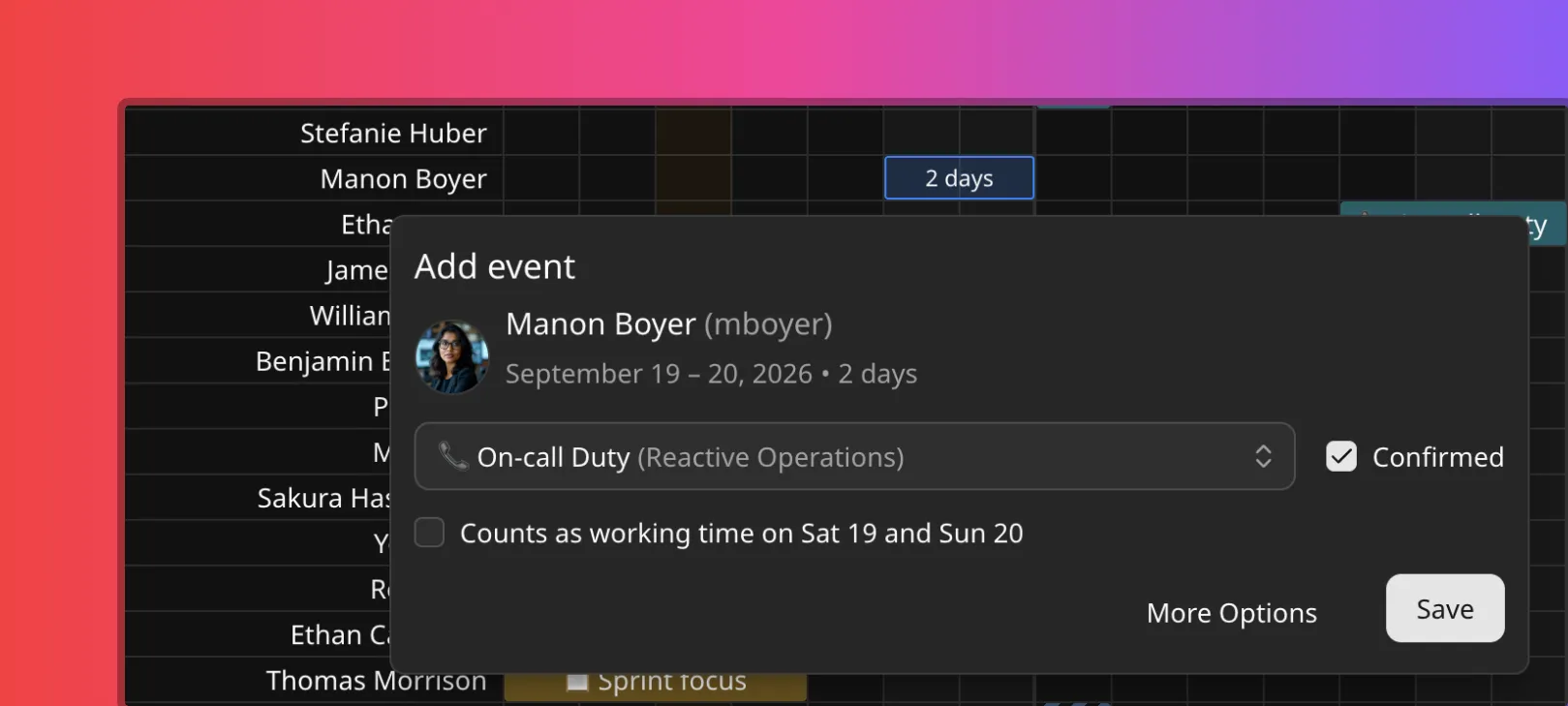
A type can set this as the default for new events. The individual event can still differ.
How the day then resolves is on How coverage is calculated.
Disabling and deleting
Section titled “Disabling and deleting”Disabled types and categories do not appear in the dropdown when creating a new event. Existing events that already use them are unaffected.
An event type can be deleted only when no events are assigned to it. A category can be deleted only when no event types are assigned to it.
Who can change this
Section titled “Who can change this”The workspace catalog is an administrator action. Team-level categories and types are configured on the team. Everyone else consumes the result: the picker when creating an event, the colours on the timeline, and the grouping in reports.
A missing type, or a percentage that does not match how a team actually works, is a catalog change rather than something to work around event by event.
Default dataset
Section titled “Default dataset”Every new workspace starts from a dataset chosen at creation. The default dataset seeds the seven categories below. The demo dataset seeds the same seven plus team-level examples. The blank dataset seeds nothing.
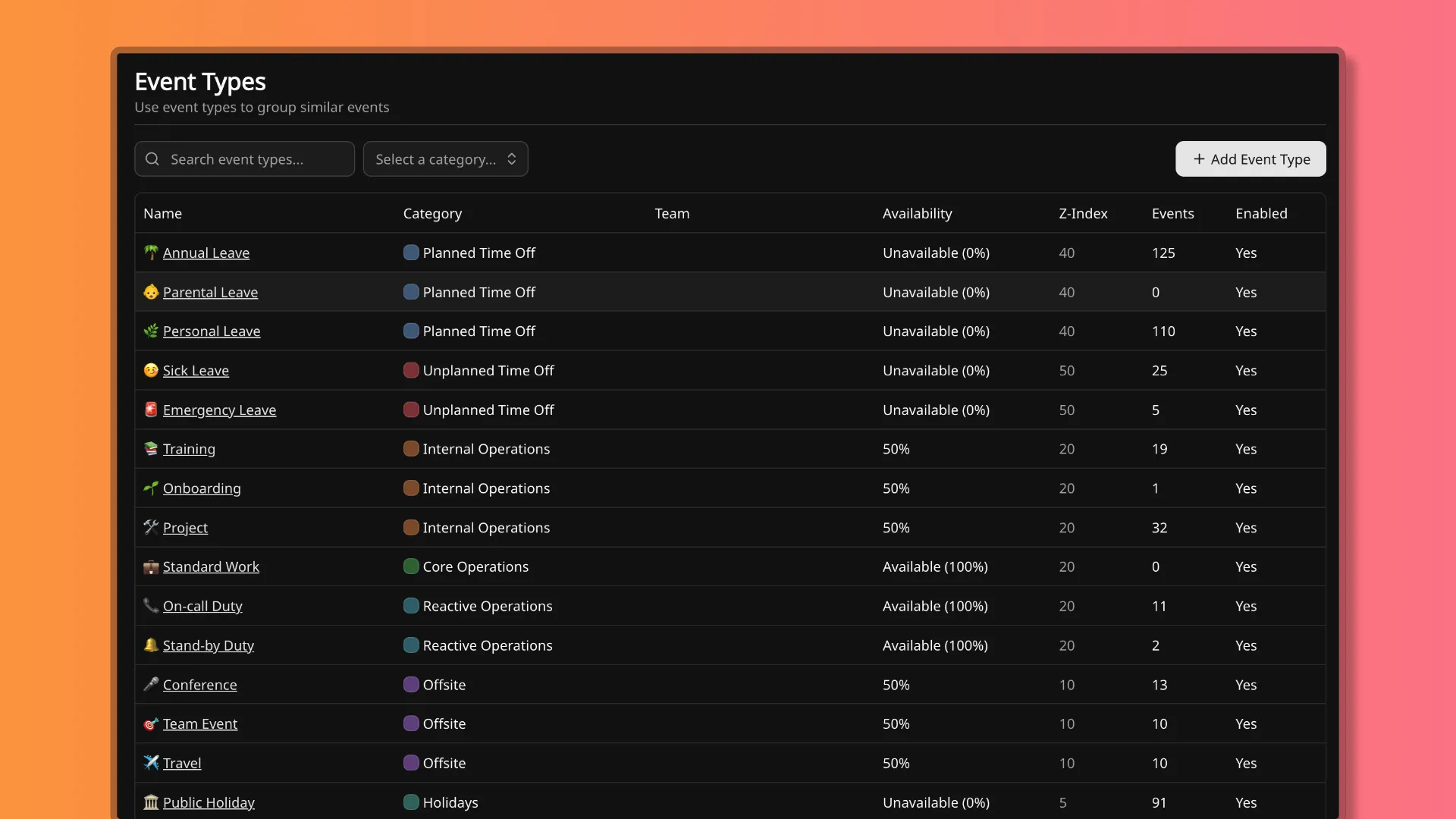
These are starting points. They can be renamed, their percentages adjusted, and anything unused disabled. In this dataset, types inherit availability from their category. Only Holidays is group-scoped.
- Planned Time Off
- Annual Leave
- Parental Leave
- Personal Leave
- Unplanned Time Off
- Sick Leave
- Emergency Leave
- Internal Operations
- Training
- Onboarding
- Project
- Core Operations
- Standard Work
- Reactive Operations
- On-call Duty
- Stand-by Duty
- Offsite
- Conference
- Team Event
- Travel
- Holidays
- Public Holiday
- Office Closure
- Observed Holiday
| Category | Scope | Time type | Default availability | Z-Index | Meaning |
|---|---|---|---|---|---|
| Planned Time Off | Member | Non-working | 0% | 40 | Foreseeable time away that can be scheduled in advance |
| Unplanned Time Off | Member | Non-working | 0% | 50 | Unexpected absences with little or no notice |
| Internal Operations | Member | Secondary | 50% | 20 | Present and reachable, with less time for regular duties |
| Core Operations | Member | Primary | 100% | 20 | Scheduled duties representing full, active contribution |
| Reactive Operations | Member | Standby | 100% | 20 | Standby or on-call, available to respond to escalations |
| Offsite | Member | Secondary | 50% | 10 | Away for external meetings, events, or travel |
| Holidays | Group | Non-working | 0% | 5 | Non-working days applied by location or company policy |
Z-Index decides which block is drawn on top when events overlap on the same day. Higher is drawn on top. Coverage still uses the lowest availability.
Planned Time Off is foreseeable absence: Annual Leave for vacation, Parental Leave for maternity, paternity, or adoption, Personal Leave for other planned time away.
Unplanned Time Off is absence that cannot be scheduled ahead: Sick Leave for illness or injury, Emergency Leave for an urgent personal or family situation.
Internal Operations is present and reachable, with less time for regular duties: Training for courses and workshops, Onboarding for a new member settling in, Project for dedicated internal work.
Core Operations is Standard Work: scheduled duty at full availability, including when that duty should count on non-working days. Reactive Operations is On-call Duty and Stand-by Duty, both at full availability and both counting on non-working time in this dataset. Working time can sit on the timeline as explicitly as time off. Teams that track absence only can leave these unused.
Offsite is time away from the usual place of work: Conference for an external event, Team Event for a shared activity during working hours, Travel for transit between locations.
Holidays is group-scoped non-working time by location or policy: Public Holiday for a statutory day, Office Closure for a company-declared day, Observed Holiday when a statutory holiday is taken on another date.
The demo dataset also seeds team-only categories (for example Engineering Activities and Support Activities). Those names are demo configuration, not part of the default catalog.
Related pages
Section titled “Related pages”- How availability works is the availability model these types and categories feed.
- How coverage is calculated is how overlapping events and non-working time resolve.
- Member events is how a type is logged on a person.
- Group events is how group-scoped types apply by location.
- Time Distribution attributes time by the category’s time type.