

Members
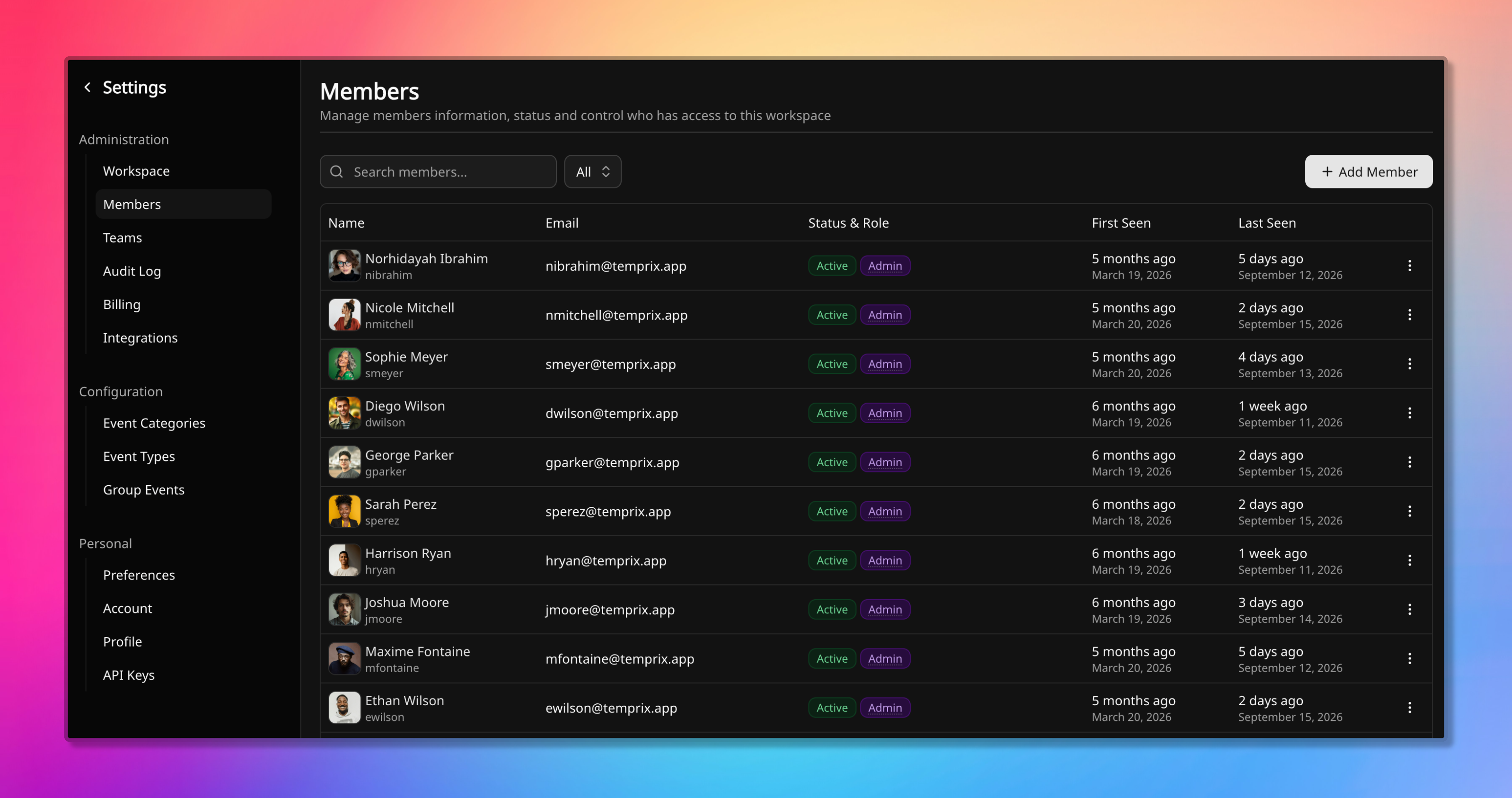
A member is a person in the workspace: someone who can appear on the timeline when active, hold events, and enter coverage. This page covers the roster and the access that goes with it.
Managing the roster is an admin action. On Free, every member has admin access.
Members and users
Section titled “Members and users”A member is a record in one workspace. A user is an account that signs in to Temprix.
They are not the same thing, and a member does not need to be a user. An email address on a member record is optional, so an admin or a manager can hold a profile and events for someone who never signs in: a contractor, a night-shift operator, a colleague who is planned around but does not use the tool. Non-person entities are allowed too, wherever something needs its availability tracked.
When a member has an email address, that record links to the user account with the same address, and the person sees the workspace when they sign in. One user account can hold members in several workspaces. Nothing is shared between them. Temprix does not send a separate invitation message; signing up with that email claims the member.
A few things require a member to be a user: owning a workspace, owning a team, and holding an API key.
Role types
Section titled “Role types”Access runs in three layers: the workspace role on the member, and two team layers on the team membership. They stack rather than override, so a standard member who owns a team has admin access on that team and none at workspace level.
Every role is described below. The two team roles are assigned on the team itself, on Teams.
Restricted is a status, not a role. See Statuses.
Workspace owner
Section titled “Workspace owner”Every plan. One per workspace.
Full administrative control, on every plan, regardless of the role stored on their member record. The owner is the account-and-billing contact and must be a member with an email address, meaning someone who can sign in.
Owner-only operations
- Deleting the workspace
- Transferring ownership to another member
- Starting a subscription and opening the billing portal
Workspace admins cannot do any of the three.
Workspace admin
Section titled “Workspace admin”Enforced from Standard.
Day-to-day administration of the workspace. Suited to the people who keep the roster and the shared configuration in order.
An admin can
- Add, edit, deactivate, and reactivate members, and set workspace roles
- Change workspace settings, including the working week
- Create teams, and administer any team
- Maintain the workspace event catalog and create group events
- Read the audit log and every API key in the workspace
Free plan behaviour
Every member has admin access. Roles can still be assigned and are stored.
Paid plan behaviour
Stored roles take effect exactly as stored on upgrade, with no automatic downgrade of anyone. Set
roles before upgrading, not after, or a workspace can find everyone is an admin the moment it
starts paying.
Standard member
Section titled “Standard member”Enforced from Standard.
Everything that is not workspace administration. On Free this role is stored but grants admin access like every other.
A standard member can
- Create, edit, delete, and confirm events on themselves and on anyone else
- See every team’s timeline, coverage, and reports
- Create and revoke their own API keys, and export CSV
A standard member cannot reach the roster, workspace settings, the workspace event catalog, group events, or the audit log.
Event editing is deliberately open. Availability data is a shared operational record, and every change is attributed in the audit log.
Team owner
Section titled “Team owner”Every plan.
Delegated control of one team, effective on every plan. Each team has exactly one, named when the team is created, and they must be a member with an email address. They hold team-admin access on that team without needing the role.
Team-owner operations
- Deleting the team
- Transferring team ownership
- Assigning the team-admin role
Workspace admins can do these too. Team admins cannot.
Team admin
Section titled “Team admin”Assignable on any plan. Enforced from Business.
A membership role for sharing team administration without granting workspace access. Below Business the label can be assigned and appears on the membership, and grants nothing until the workspace reaches Business.
A team admin can
- Add and remove that team’s members
- Change that team’s settings, except the owner
- Maintain team-scoped event categories and types
- Create and edit that team’s coverage alert rules
A team admin cannot delete the team, change its owner, or assign the team-admin role.
Team membership and these roles are managed on Teams.
Managing members
Section titled “Managing members”Adding a member
Section titled “Adding a member”An admin creates a member with a display name and a key. Everything else is optional and editable afterwards. Demo workspaces cannot add members.
The key is an identifier for the member in external systems, so records stay matchable when events are written over the API or reconciled against an HR tool. It is unique in the workspace and admin-only.
The profile then holds:
| Field | Used for |
|---|---|
| Display name, job title, picture | Identification across the app |
| Email address | Linking the member to a user account. Admin-only |
| Country, subdivision, locality | Matching group events. Nothing is inferred |
| Time zone, working hours | Presence display. Neither changes availability |
| Baseline availability | Availability on a day with no event. See How availability works |
| Non-working days | This member’s working week, overriding the workspace default |
| Tags | Free key-value pairs, used to group and filter timelines and reports |
Creating a member does not put them on a team. Membership is added separately, on Teams. A member on no team still exists in the workspace and enters no team’s coverage.
If the workspace is already at its active-member cap, the person is still created. They start as restricted.
Editing a member
Section titled “Editing a member”Field access is tiered, and enforced server-side.
| Caller | Can write |
|---|---|
| Admin | Every field on any member |
| Self | Display name, job title, picture, and shared location or schedule fields on their own record |
| Manager | Baseline availability, tags, and shared fields on another member on a shared team |
| Anyone | Events on any member. See Member events |
Manager access means the team owner, or a team admin on Business and above, on a team shared with that member. It exists so the people who run a team can keep its availability data accurate without holding workspace administration.
The key and email address are admin-only, on every tier. Changing a member’s role is a separate admin action and is not part of editing a profile.
| Field | Admin | Self (own) | Manager |
|---|---|---|---|
| Key, email | Yes | No | No |
| Display name, title, picture | Yes | Yes | No |
| Location, time zone, working hours, non-working days | Yes | Yes | Yes |
| Baseline availability, tags | Yes | No | Yes |
Deactivating a member
Section titled “Deactivating a member”Deactivating is how someone leaves. It removes the member from coverage, from the billed seat count, and from team timelines. Their events, history, and team membership stay on file, so past reports stay accurate.
There is no delete. A member record is never removed from the workspace.
Self-deactivation is not allowed, and the workspace owner cannot be deactivated. Transfer ownership first.
Reactivating a member
Section titled “Reactivating a member”A restricted or deactivated member is made active again once a seat is available. Activation is blocked while the workspace is already at 10 active members on Free, and self-activation is not allowed.
Their history comes back with them: events, past and future, team membership, and their place in reports for periods they were active. Nothing is re-entered. The exception is API keys, which stay revoked.
Removing personal data
Section titled “Removing personal data”To remove someone’s personal data, an admin edits the deactivated member’s record and clears or overwrites the identifying fields. The events stay, now without a name attached.
Entries already written to the audit log are not rewritten by this, since the log is immutable. In a small workspace it can also remain possible to infer who a former member was from the pattern of retained events.
For erasure beyond what the admin interface reaches, including audit history, contact
privacy@temprix.app. The full position is in the
Privacy Policy.
Statuses
Section titled “Statuses”Every member is in one of three states.
| Status | Access | Coverage | Billed |
|---|---|---|---|
| Active | Full, per their role | Counted | Yes |
| Restricted | Can sign in and read. Cannot change events or configuration | No | No |
| Deactivated | None. The record and its history remain | Excluded | No |
Active is the default when the workspace is under the cap. Only active members appear on the timeline and in coverage.
Restricted means a member who was active and lost their seat to a billing limit, not a permission level to assign. It is applied by the two rules below rather than chosen. The person can still open the workspace read-only until a seat frees up or the workspace upgrades.
Deactivated is the deliberate one, described under Deactivating a member.
The Free member cap
Section titled “The Free member cap”Free workspaces have 10 active members.
Adding the eleventh does not fail. The member is created with restricted status instead: the record exists, the profile is complete, and the person can sign in and read. They are not billed and do not enter coverage.
To give a restricted member a seat, either upgrade on Billing and plans, or deactivate an active member to free one. Plan features are on Pricing.
Paid plans have no active member limit. Demo workspaces do not enforce the cap.
The least-recently-active rule
Section titled “The least-recently-active rule”When a workspace downgrades to Free with more than 10 active members, Temprix restricts overflow automatically. It starts with members whose last recorded activity is oldest. Members who have never been seen count as oldest. The workspace owner is never restricted this way.
Restriction is reversible and loses nothing. Records, events, history, and team membership are untouched. On upgrade off Free, every restricted member is restored to active.
Which members are chosen follows recorded activity in the workspace, not role or seniority. An admin who has not signed in for months is restricted before a standard member who uses the app daily.
Admins can deactivate members first so the overflow rule never runs.
A failed payment marks the workspace past due. That mark does not restrict members by itself.
Where to go next
Section titled “Where to go next”- Teams for membership, owners, and team admins.
- Workspace settings for ownership, the working week, and deletion.
- How availability works for baseline availability and non-working days.
- Group events for why a member’s country matters.
- How coverage is calculated for why only active members enter the number.
- Audit log for where roster changes are recorded.
- Your account for sign-in and profile.
- Billing and plans for subscriptions and seat billing.
- Pricing for plan comparison.