

Member events
A member event is a claim about one person’s time: a description of a period, not a calendar booking. It belongs to one person. It carries an event type and an availability value: how much of that person’s time remains available while it runs. Leave, training, on-call, a project, a sick day are all member events.
Member events are whole days by design. They do not describe a two-hour meeting or other intra-day activity.
Events of different types may overlap. That is how a sick day sits on top of a project. On the Timeline, the type that stacks higher draws on top. Coverage still uses the lowest availability of the overlapping events. Visual stacking does not change the number. How those values combine is on How coverage is calculated. Two events of the same type do not overlap on one person. One period has one description of that type.
Creating events
Section titled “Creating events”Create an event from the Timeline or from a member’s page. You can create it for yourself or for a teammate.
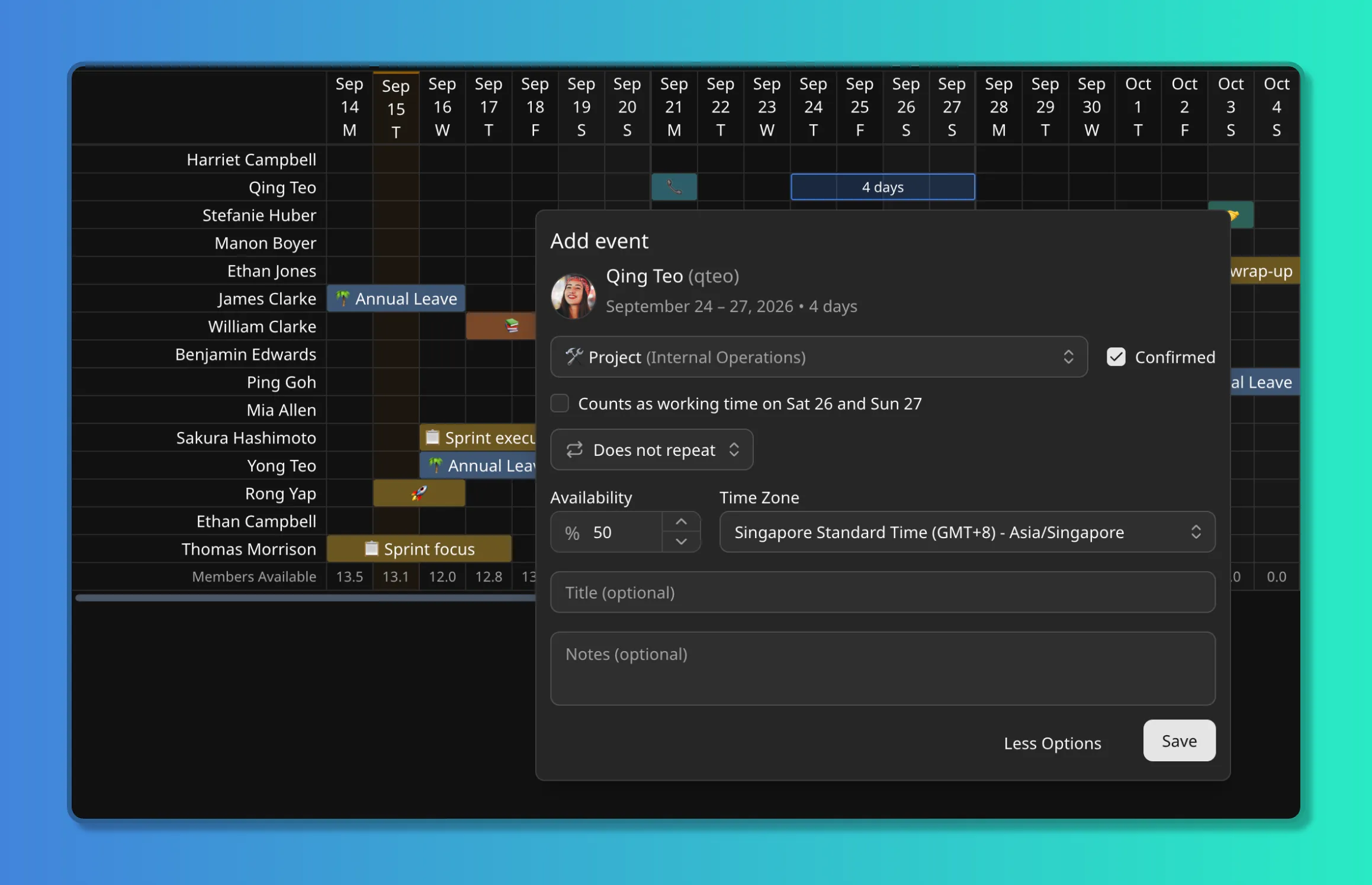
Any active member can create, edit, delete, and confirm events, including events on someone else. You do not need to be a workspace admin or a team admin. Restricted members can see events and cannot change them. Roster and statuses are on Members.
Pick a member-scoped event type (see Event categories and types). Dates are whole calendar days. A one-day event is that day. A Monday to Friday event is those five days.
Then set how much of the person’s time remains available while the event runs. The form offers
the lower of the type default and the member’s baseline. A
100% on-call type on a 60% member is offered at 60%. That is a convenience. You can
change the value. Once saved, coverage uses the saved value.
That value is availability remaining, not time consumed. Annual leave at 0% means fully
away. A project at 33% puts two thirds of the person’s time on the project and leaves one
third for other work. On-call at 100% does not reduce anything; it exists so the rotation is
visible.
If the span includes non-working days, you can set this event to count on those days. That setting is on How availability works. How it enters the team number is on How coverage is calculated.
You cannot change the member or the event type after create. If you created the event on the wrong person or type, delete it and create a new one. Deletion cannot be undone.
Tentative versus settled
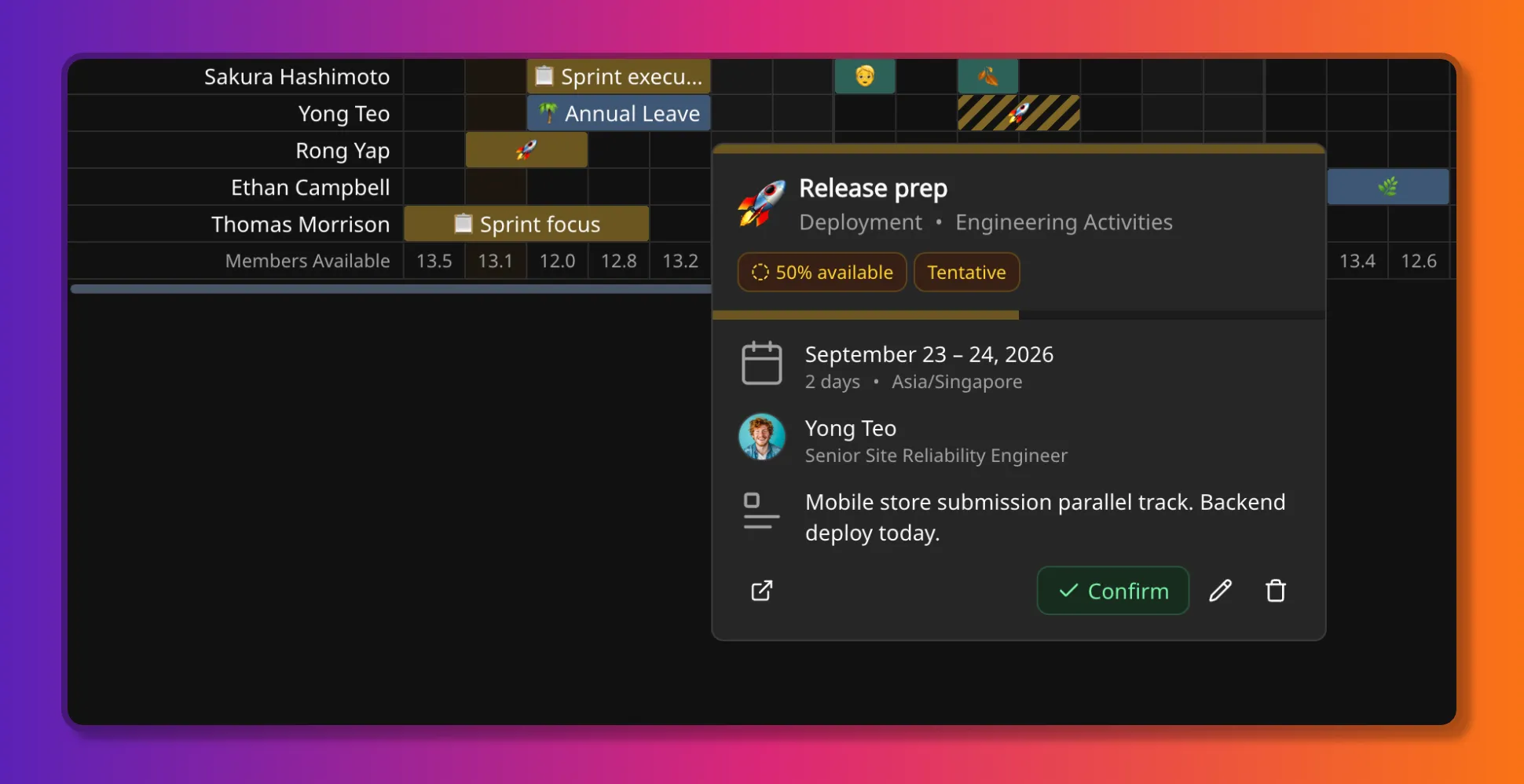
Section titled “Tentative versus settled”Leave an event unconfirmed while the dates are still being discussed. Confirm it when they are settled. Confirming records who confirmed and when.
Unconfirmed events do count toward coverage. Confirmation changes how the event is presented, not the coverage figure. That rule is on How coverage is calculated.
Recurring events
Section titled “Recurring events”You can repeat an event daily, weekly, monthly, or yearly, optionally limited by a count of occurrences or an until date.
Coverage and the Timeline see dated occurrences, never the recurrence rule. That expansion is on How coverage is calculated.
When you change or delete a recurring event, choose the scope:
- This event: this occurrence only.
- This and following events: this occurrence and later ones in the series.
- All events: the whole series.
Time zones
Section titled “Time zones”Temprix plans in whole calendar days, not clock hours. An event covers the dates you give it, not 14:00 to 18:00. Member working hours do not change availability.
Every member event stores a time zone, defaulting to the member’s. For a distributed team, treat those dates as that member’s calendar dates in that zone. A Friday event on a member in London is Friday in London. It is not converted to another member’s Friday. Coverage is calculated on those calendar dates.
Where to go next
Section titled “Where to go next”- How availability works is the availability model an event participates in.
- How coverage is calculated is how overlapping events become a team number in people.
- Timeline is where events sit on the grid.
- Event categories and types is where type defaults and stacking order are set.
- Group events covers holidays and other location-targeted spans.
- Member Events report is the forward-looking list of these events.
- Members covers roster and restricted access.