

Timeline
The Timeline is where you see the team and add events. You look at who is doing what, what coverage looks like that day, and you put the next event on the grid while that context is still in front of you.
Open it from a team’s Timeline tab.
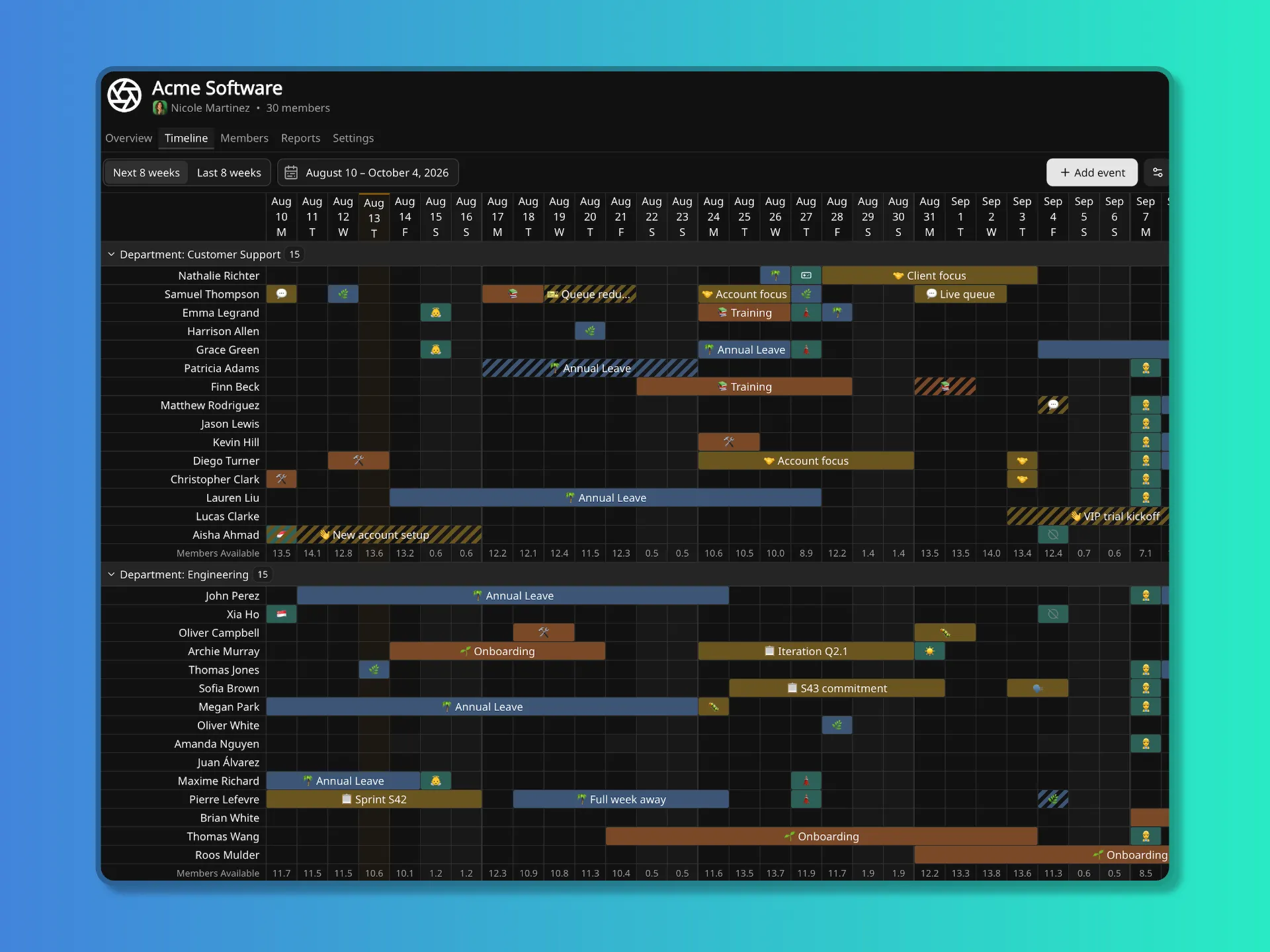
The window is Next 8 weeks or Last 8 weeks, or a range you pick.
Adding events
Section titled “Adding events”Click or drag on a member’s row. That is the usual way to add an event.
Use Add event when you are logging an override on top of an event that is already there, or when the span is long enough that dragging is unfeasible.
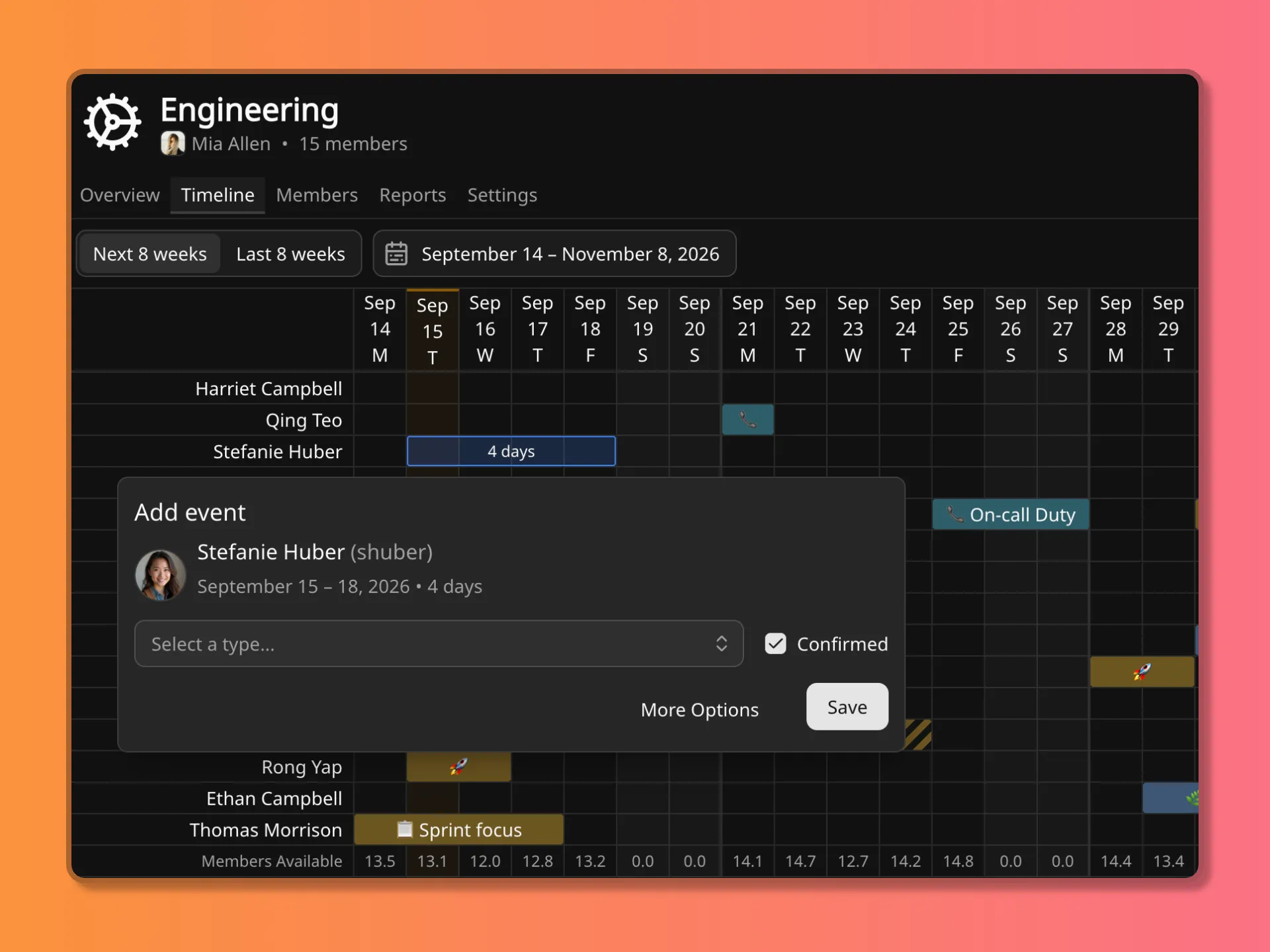
You can add events for anyone on the team from here.
Viewing and editing events
Section titled “Viewing and editing events”Click a block on the grid to open it. From there you can read the event, edit it, delete it, or Confirm it if it is still Tentative.
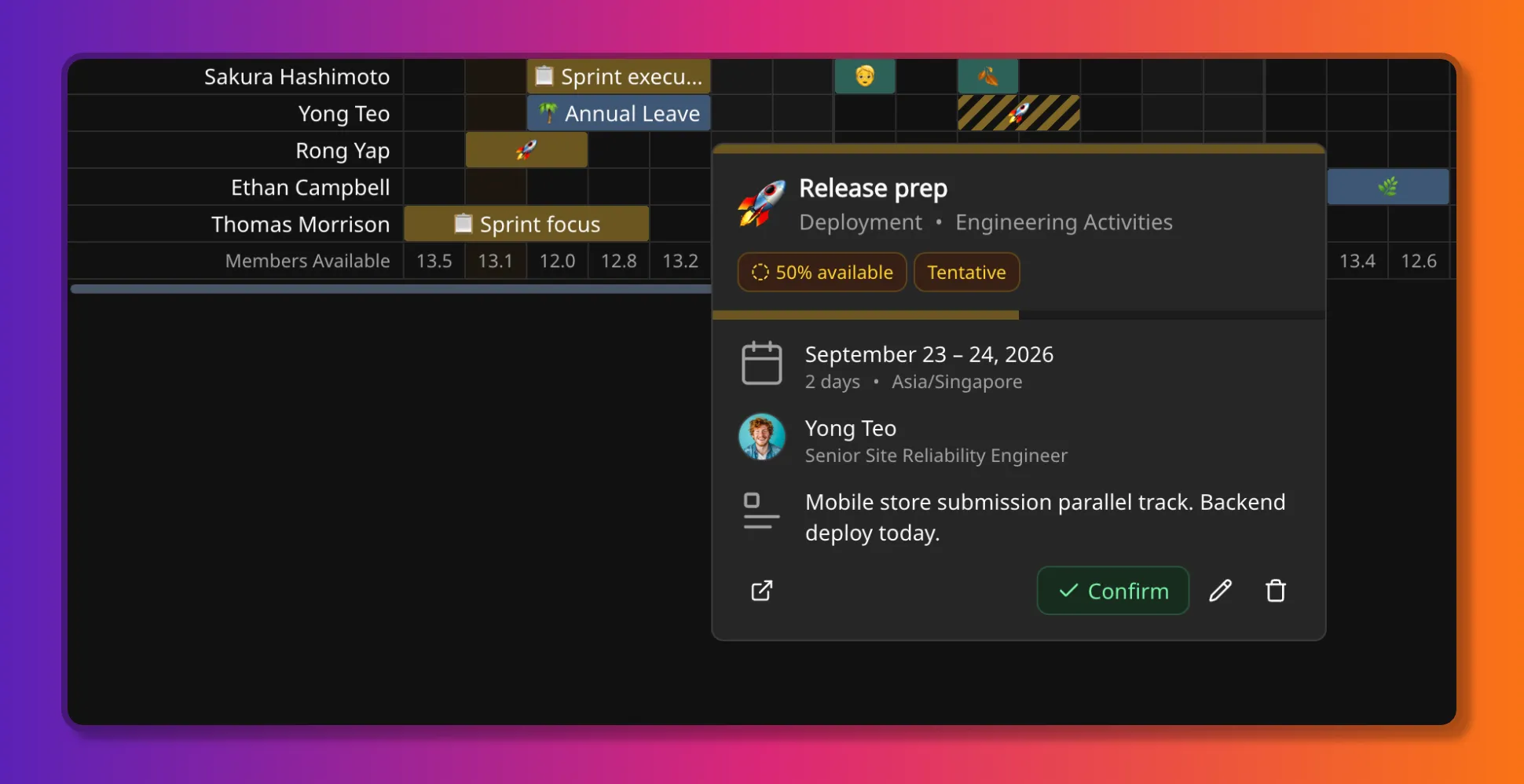
Striped blocks are unconfirmed. They still count toward coverage. Recurrence, confirmation, and the rest of the form are on Member events.
View options
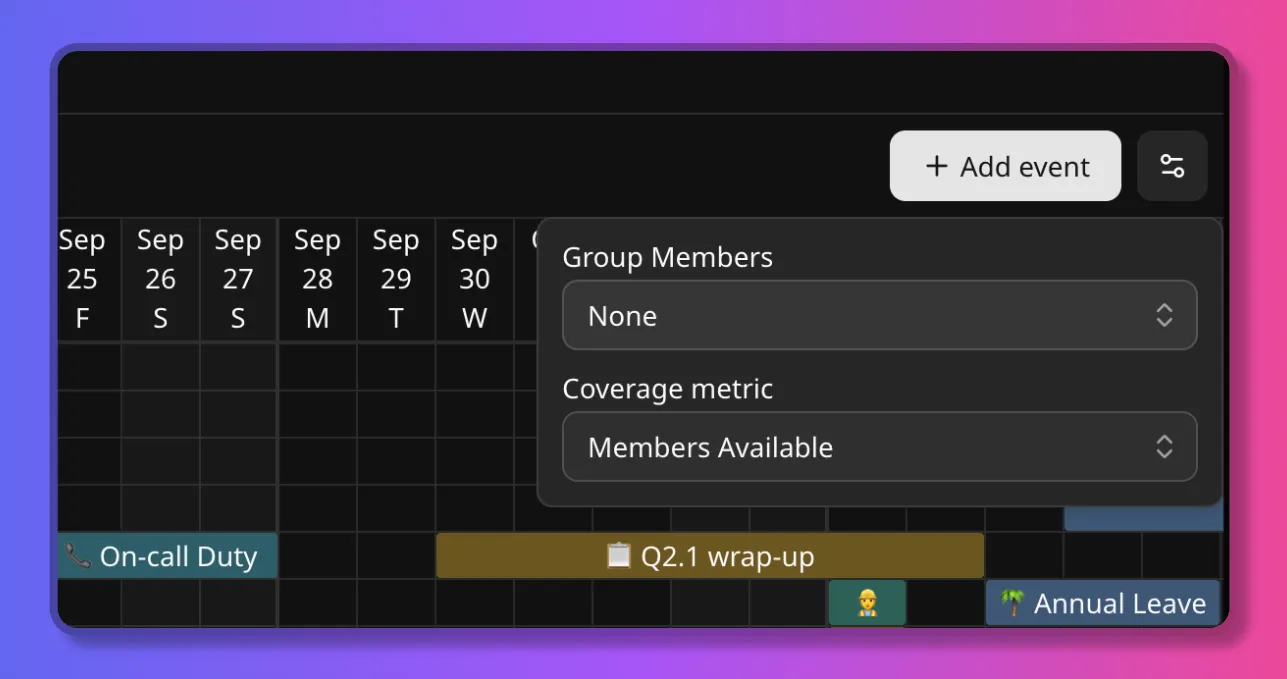
Section titled “View options”Group Members splits the grid by Title, Country, Subdivision, Locality, or a
custom tag such as Department. Each group gets its own coverage row. None is the ungrouped
team.
Coverage metric changes how that row is displayed (Members Available by default). The other modes and Target are on How coverage is calculated. None hides the row.
Where to go next
Section titled “Where to go next”- How availability works is the availability model the blocks display.
- How coverage is calculated is how the coverage row is produced.
- Member events covers creating events, recurrence, and confirmation.
- Event categories and types is where colours and default availability are configured.
- Group events covers location-targeted holidays and closures.