

Teams
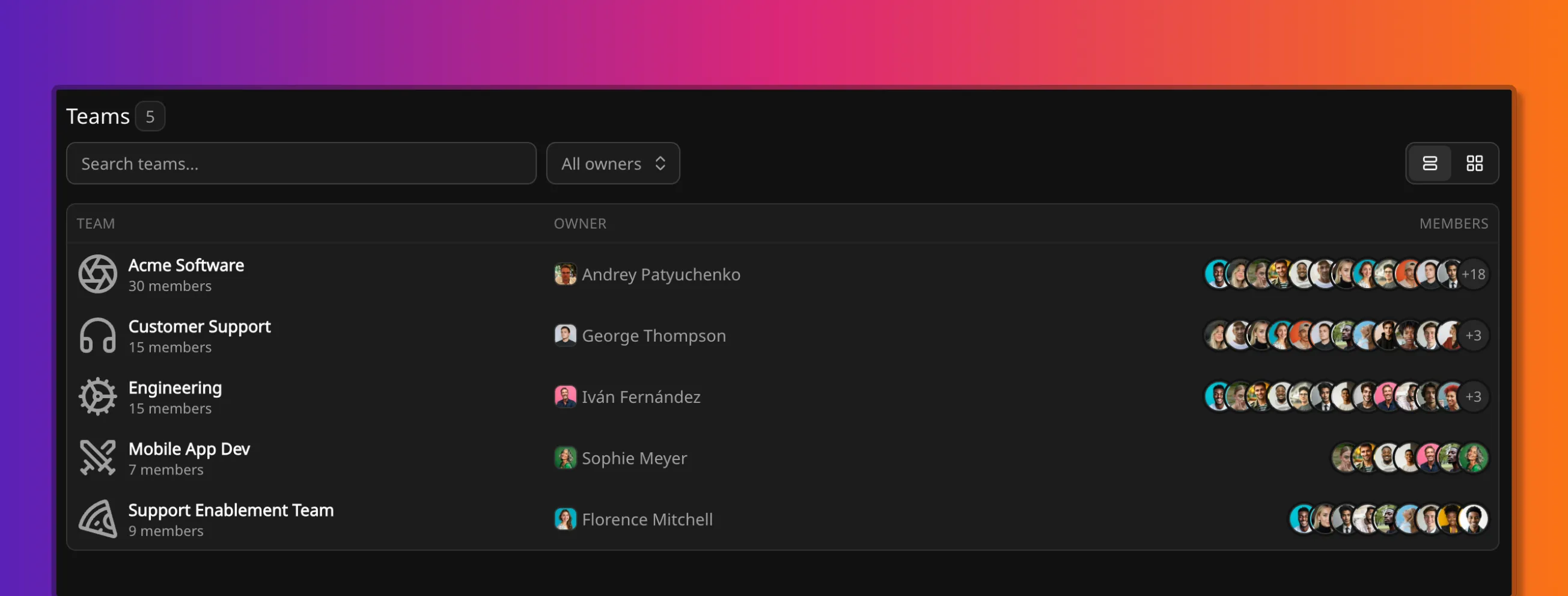
A team is the group coverage is planned for. Coverage, alerts, and reports on a team use that team’s members, not the whole workspace.
A member can belong to more than one team. Their availability then counts on each of those teams independently. Members can also sit on no team. They still exist in the workspace; they just do not enter any team’s coverage figure.
Workspace admins create teams. On Free, every member has that access. See Members. A default or blank workspace starts with none. The Demo dataset seeds an all-company team plus smaller teams.
Forming a team
Section titled “Forming a team”A team is created with a name unique in the workspace, and an owner. The owner must be an active member with an email address: someone who can sign in. They are the go-to person for the team, and they always have team-admin access on it.
Creating a team does not add anyone to it. Membership is added separately, including the owner if they should appear on the timeline and in coverage.
Only workspace admins can create a team. Only the current owner and workspace admins can later change the owner. A new owner must also be an active member with an email address.
Membership
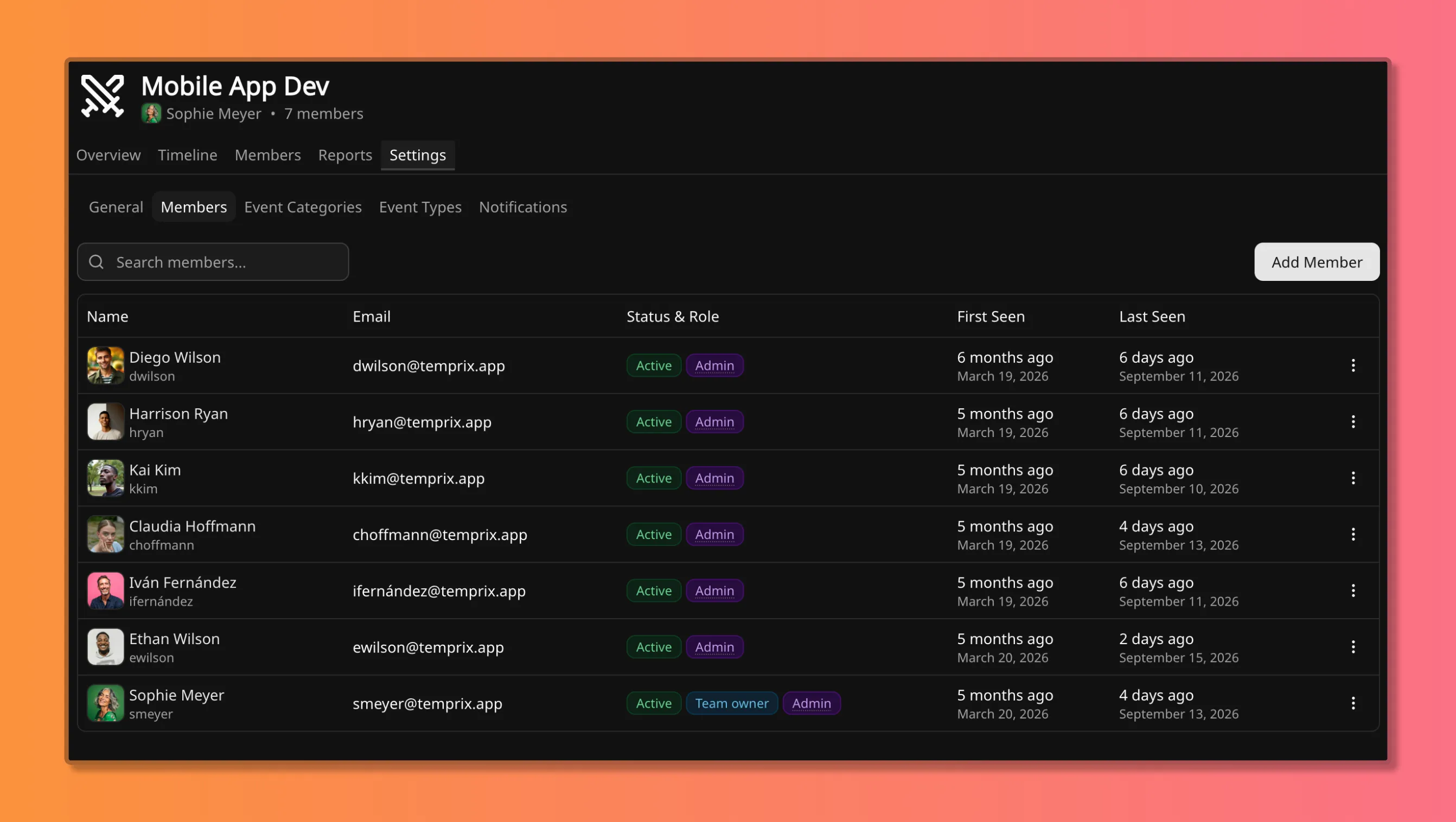
Section titled “Membership”Membership determines whose availability counts toward this team’s coverage. Only active members can be added. The same person cannot be added twice to one team, but they can sit on as many teams as needed.
Removing someone from a team takes them off this roster only. Their workspace member record is unchanged.
Each membership starts as standard. The owner and workspace admins can assign team admin on that membership. See Team admins.
What a team is used for
Section titled “What a team is used for”How coverage is calculated is the number a team produces, in people. Overview and Coverage Outlook show that figure against an optional target. The target is a headcount of available members. It does not change how coverage is calculated.
Days are seen and edited on the Timeline.
Team reports are Coverage Outlook, Time Distribution, and Activity. Member Time Breakdown and the Member Events report are about one person, not this team.
Team configuration covers who is on the team, a reporting-only baseline time type override, team-scoped event types, and coverage alerts.
Team-scoped types and alerts
Section titled “Team-scoped types and alerts”A team can add event categories and types on top of the workspace set. They do not replace workspace types. When a member event is logged, the picker includes workspace types plus types from teams that member belongs to.
Workspace-wide categories and types are edited in workspace configuration. See Event categories and types.
Coverage alert rules are per team. They are created and edited from the team’s settings.
Team admins
Section titled “Team admins”Team admin is a membership role, separate from the workspace role and from the team owner.
It can be assigned on any plan. The assignment is stored immediately. It is enforced from Business. Below Business, the label can still appear; it does not grant access until then.
The team owner always has that access, on every plan. Workspace admins do too. The owner does not need the team-admin role; they already have the access.
Workspace roles, team owner, and team admin together are on Members.
Deleting a team
Section titled “Deleting a team”Only the team owner or a workspace admin can delete a team. Team admins cannot. A team can be deleted only when it has no event types and no event categories.
Where to go next
Section titled “Where to go next”- Members: workspace roster, statuses, and roles
- Event categories and types: workspace and team configuration
- Coverage alerts: rules on a team
- How coverage is calculated: the number a team produces
- Timeline